Ask PRISM
Ask PRISM
Ask the AI assistant about your model in plain words, and let it propose changes that you confirm before anything is written.
Ask PRISM is a chat about the model that is open. It answers questions such as “Explain this diagram”, finds elements and traces, and can propose changes to the model. It never writes a change you have not confirmed, and everything it adds is marked as proposed until someone approves it.
Open the chat
Click Ask PRISM at the top right of any page, or press C. The chat opens on the right of the page; C or × closes it again. Type your question and press Enter to send it (Shift+Enter starts a new line).
The chat needs an AI provider. Until one is set up the chat says The chat is not set up yet. with a Set up chat button, and its input stays off; the diagrams and the Edit mode work without it. How to connect it, and what to do when the connection test fails, is on Chat setup.
Before you use the chat for the first time, read Your data and the AI chat: it explains what the chat sends and what it never sends.
What to ask
An empty chat lists a few example questions; click one to ask it. The list goes away with your first question.
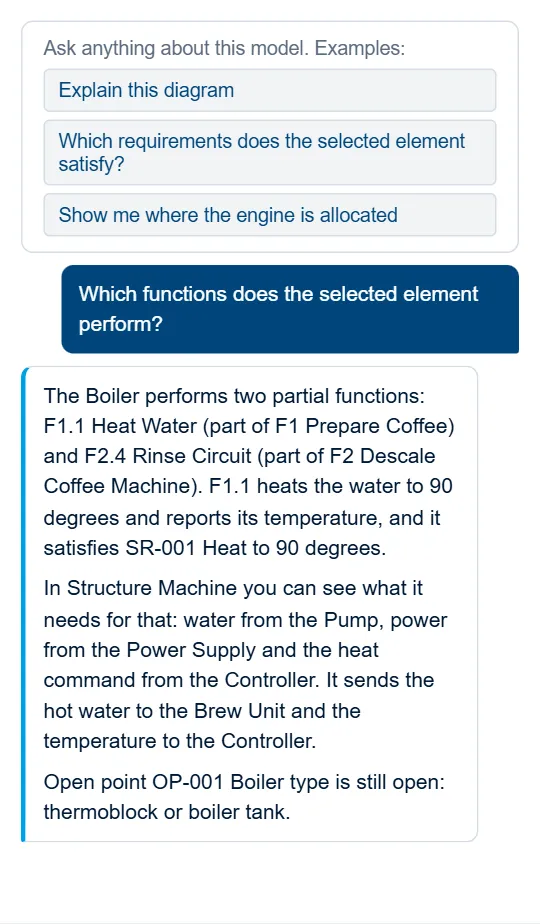
Ask in plain words, in the terms of your model. With the coffee machine for example:
- “Explain this diagram”
- “Which requirements does the selected element satisfy?”
- “Which part performs F2.1?”
- “Which requirements are not satisfied by any function yet?”
The assistant looks things up in the model before it answers. It can also steer the page: open a diagram, or select and highlight the elements it talks about. Element ids in an answer are links that select the element. To get the open diagram as a picture, ask “Give me this diagram as an image”: the answer shows it with Save image….
A long answer shows its progress and a Stop button. An answer that was stopped, or that reached its limit of steps, ends with Continue.
Ask about one element
Select the element in the diagram first. The line above the input says what the chat sends with your question, for example Diagram: Structure Machine · Selected: Boiler, so “this” and “the selected element” mean that element.
You can also right-click a block, port or line and choose Ask assistant about this…, or click Ask assistant… in the details panel. A small box Ask the assistant about … opens; type your question and click Ask.
Let the assistant change the model
Ask for a change as you would ask a colleague, for example “Add an output for the water level to the Water Tank”. By default nothing is written until you agree:
- The assistant shows a card Change to the model with the exact changes.
- Click Confirm and apply to write them, or Reject to drop them.
- After you confirm, the card says Not committed to git yet. with Commit now…: review and commit the change like any other (see Save and share your changes).
Every element the assistant creates is marked as proposed, drawn with a dashed amber outline, until someone approves it: see Proposed content. A confirmed change is one step of the undo history: Undo (n) in the Edit mode, or Ctrl+Z (Cmd+Z on a Mac), takes it back.
The assistant can also offer to commit. That card says Commit to git and needs your click on Confirm commit.
Choose how changes are applied
Click ⚙ in the chat header:
- Confirm each change (the default): every change waits for your Confirm and apply.
- Apply directly (with Undo): PRISM asks once, then the assistant writes its changes without asking. Each change appears in the chat with an Undo button. Commits still need your click.
The same menu sets the Max steps per answer. These choices hold for all chats until PRISM is restarted. ↺ (New chat) starts a new chat.
What the assistant sees
The assistant reads what it needs from the model: names, descriptions and requirement texts. That text is sent to the AI provider of your installation. It sees the diagram you are on and the element you selected.