Changing the model
Create views
Make a new diagram from an element of the model, start a blank one, copy a diagram, or build a flow by hand – all without writing SysML.
A view is a diagram that is written in the model. PRISM writes new views for you: from an element you pick, as a blank diagram you fill in, or as a copy of an existing one. A view you make is an ordinary change of the model: you can undo it, and you commit it with your other changes (see Save and share your changes).
Create a view from the home page
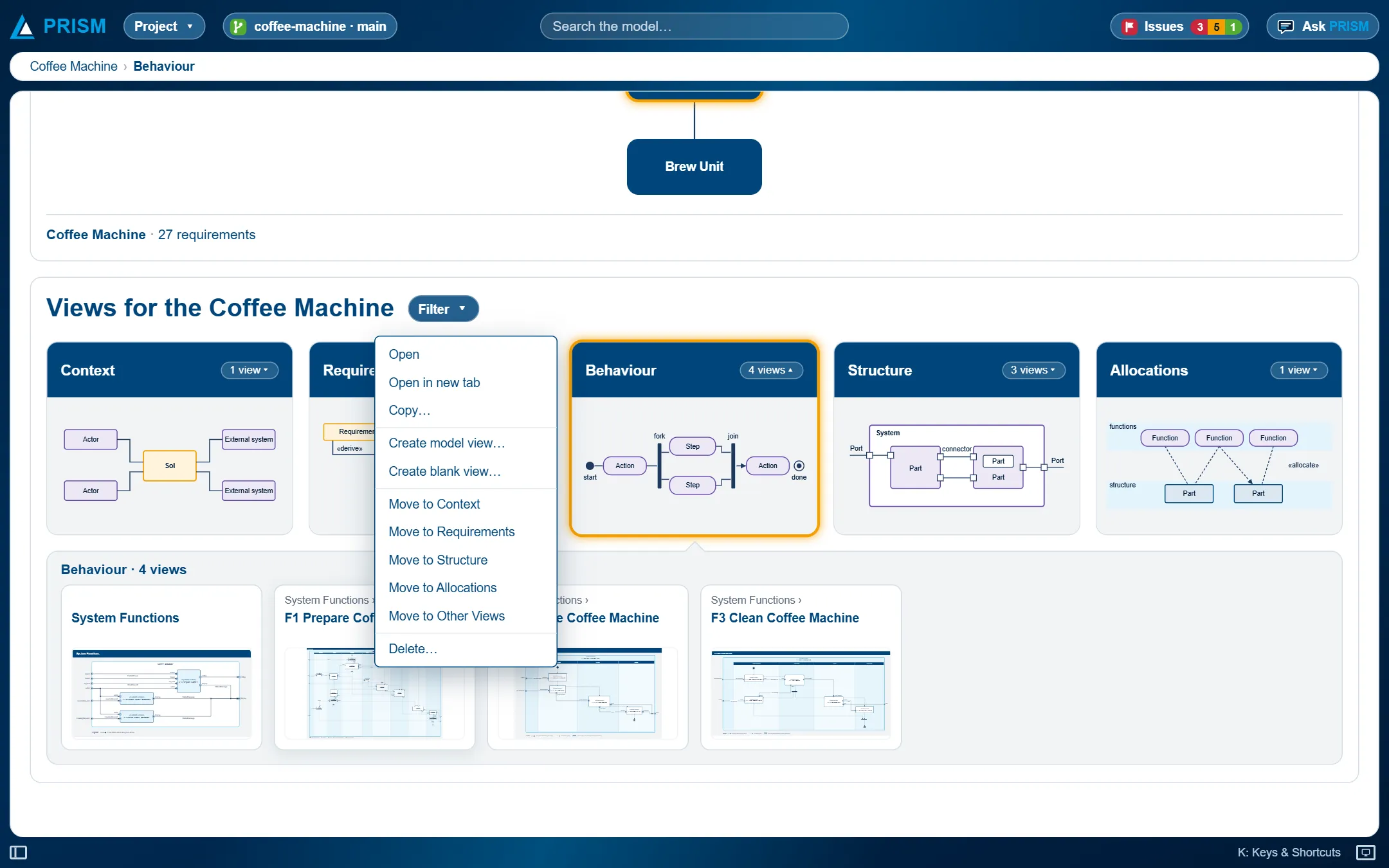
On the home page, right-click the card Structure, Behaviour or Allocations and choose Create model view…. An empty card says “Right-click to create a view”.
- The model tree switches to selection mode, with a hint such as “Choose a part for the new structure view (Esc cancels)”. Only elements that fit can be chosen; the others are greyed out.
- Click the element: a part for a structure view, an action for a behaviour view, a package with allocations for an allocations view.
- PRISM writes the view and opens it. Its name is the element and the kind, for example Brew Unit – Structure; you can rename it later.
The cards Context and Requirements have no such entry: PRISM draws the requirement views itself.
Create a view of one element
Right-click the element in the model tree or in a diagram, and choose Create view…. The details panel of a selected element has the same button. PRISM writes the view without asking for anything else and opens it.
Create a view below another one
On the home page, open a card and right-click the tile of a view, for example F1 Prepare Coffee. Create model view… offers only what lies inside that view’s element; the new view is listed below the tile.
Start a blank structure diagram
Right-click the card Structure (or a tile of a structure view) and choose Create blank view…. The dialog Create blank view asks for the name of the diagram, the package and the file, and says in one line what it will write. Click Create.
The new diagram opens with an empty frame and the hint This view is empty. Add parts, ports and connections in the Edit mode: PRISM writes them into the model as you go, and the hint goes away with the first element.
Build a flow by hand
Right-click the card Behaviour (or a tile of a behaviour view) and choose Create blank view…. Give the flow a name and click Create. The empty flow opens in the Edit mode.
- Lanes: click Add lane in the toolstrip. A lane stands for a part of the model; you can also make a new logical part for it.
- Steps: click the first button of the toolstrip, then click into a lane where the step goes, and type its name. Or double-click a lane.
- Order: drag from one step to the step that follows it.
- Start and end: click Flow in the toolstrip and choose Start, then click the step the flow starts with. End works the same way for the last step.
- Branches: Flow also has Decision, Merge, Parallel start and Parallel end. When you drag from a decision to a step, PRISM asks for the condition of that branch, or for Otherwise (the branch taken when no condition holds).
To send data from one step to another, right-click the first step, choose New data flow to and then the other step. PRISM asks for the item that flows (it can stay empty) and adds an output, an input and the flow between them. Dragging from a step’s edge always draws the order, never a data flow. The menus offer only the steps that can be part of this flow: a step inside a function that has its own flow is not offered. Every action is one step of the undo history.
Copy a diagram
On the home page, right-click the tile of a view and choose Copy…. Type the name of the copy (PRISM suggests F1 Prepare Coffee copy) and click Copy.
The copy is a new view with the same content and its own copy of the arrangement. From then on the two are independent: change or delete one and the other stays as it is. A diagram that PRISM draws by itself is not a view of the model and has no Copy….
What PRISM writes
- PRISM picks the file for the new view, usually a file of views next to the file of the element, or a new one there. The message after the change names the file.
- A view you make is not marked as proposed: the marking is for content an AI assistant adds (see Proposed content).
- Each new view is one step of the undo history: Undo in the message removes it again.