Ask PRISM
Proposed content
Recognise content an AI assistant added and nobody has reviewed yet, and approve or reject it – one element or a whole diagram at a time.
Everything an AI assistant adds to the model is marked as proposed until a person has looked at it and approved it. The marking is part of the model, so it stays when the project is committed, shared or opened again. Use this page when you review what the assistant did.
Recognise proposed content
PRISM shows proposed content wherever it appears:
- In diagrams: a proposed block has a dashed amber outline and a small PROPOSED tag. Proposed ports and lines are dashed amber. The legend names it Proposed – not yet reviewed.
- In the details panel: select the element and press Enter. A dashed amber box says Not yet reviewed, who proposed it, when, from where, and why.
- In the requirements: a proposed requirement carries an amber PROPOSED badge (see Requirements).
- On the Issues page: the column AI Proposals lists every proposed element (see Issues).
The coffee machine has proposed content on purpose: the actor Service Technician in Context Machine, the two service ports in Structure Machine, and the requirement SR-014 Descale reminder.
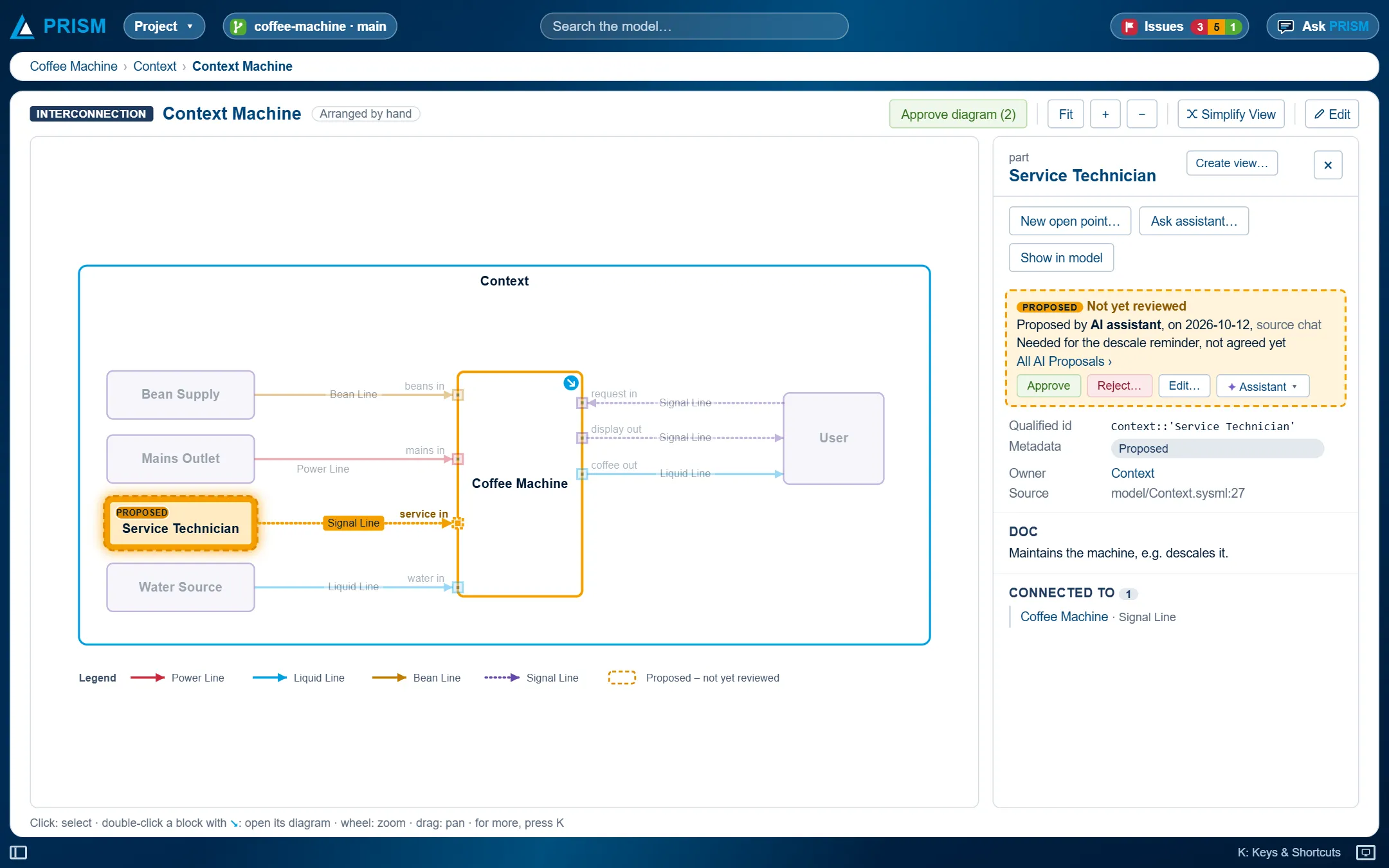
What you add yourself in the Edit mode is never marked. Whether AI changes are marked is the setting Mark AI changes as proposed in the project settings; Highlight proposed content turns the drawing on or off.
Approve one element
Select the proposed element and press Enter to open the details panel. In the amber box, click Approve. A short confirmation lists what will be approved, the element and everything proposed inside it; click Approve again.
PRISM removes the marking from the model. The element is drawn like any other, and the change waits in the commit dialog like your other changes.
Approve a whole diagram
A diagram that shows proposed content has the button Approve diagram (n) in its toolbar, with the number of proposed elements. On Structure Machine it reads Approve diagram (2).
- Click Approve diagram (2).
- The confirmation lists what will be approved: on Structure Machine the two ports service in.
- Click Approve, or Cancel.
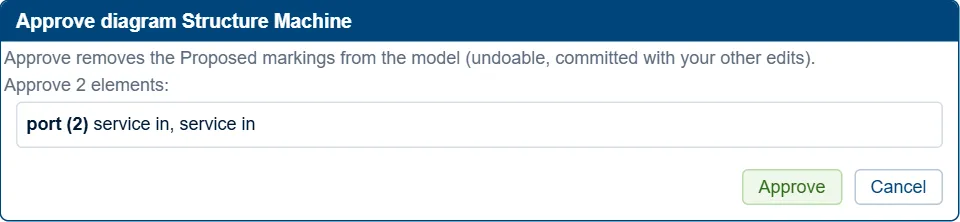
The button disappears when nothing proposed is left in the diagram.
Reject a proposal
In the amber box of the details panel, click Reject…. Rejecting deletes the element from the model. PRISM first lists everything that goes with it, as for Delete from model; nothing is deleted until you confirm.
Change a proposal before you approve it
- Edit… turns the Edit mode on and opens the properties of the element, so you can correct its name or text.
- Assistant › Change this proposal opens the chat with “Change this proposal as follows: “ and the element. The changed element stays proposed: the assistant never removes the marking.
Take a review step back
Approve and Reject are steps of the undo history like every other edit: Undo (n) in the Edit mode, or Ctrl+Z (Cmd+Z on a Mac), brings the marking or the element back. Nothing is committed until you commit it (see Save and share your changes).