Getting started
What is PRISM
PRISM turns a system model written as SysML v2 text into diagrams and views in the browser, for everyone who works on the system.
PRISM shows a system model as diagrams, tables and lists in the browser, and lets you change the model from there. Read this page first if you have never used PRISM; it explains the few ideas the rest of the docs build on.
The model is text in a Git repository
A PRISM model is a set of text files in SysML v2 notation (files ending in .sysml). They describe the system: its parts and ports, its functions, its requirements, which part performs which function, and the open questions about it. PRISM supports the parts of SysML v2 that systems engineers use day to day, not the complete language.
The files usually live in a Git repository, like source code. Every change is a change of a text file, so you can see who changed what, compare versions and work on a branch. PRISM shows the branch you are on at the top of every page, lists your changes before you save them, and commits only when you click Commit. See Save and share your changes.
Diagrams are drawn for you
You do not draw diagrams in PRISM. A view in the model says what to show, for example “the structure of the coffee machine”, and PRISM draws it: it places the blocks, routes the lines and adds a legend. When the model changes, every diagram that shows the change is drawn again.
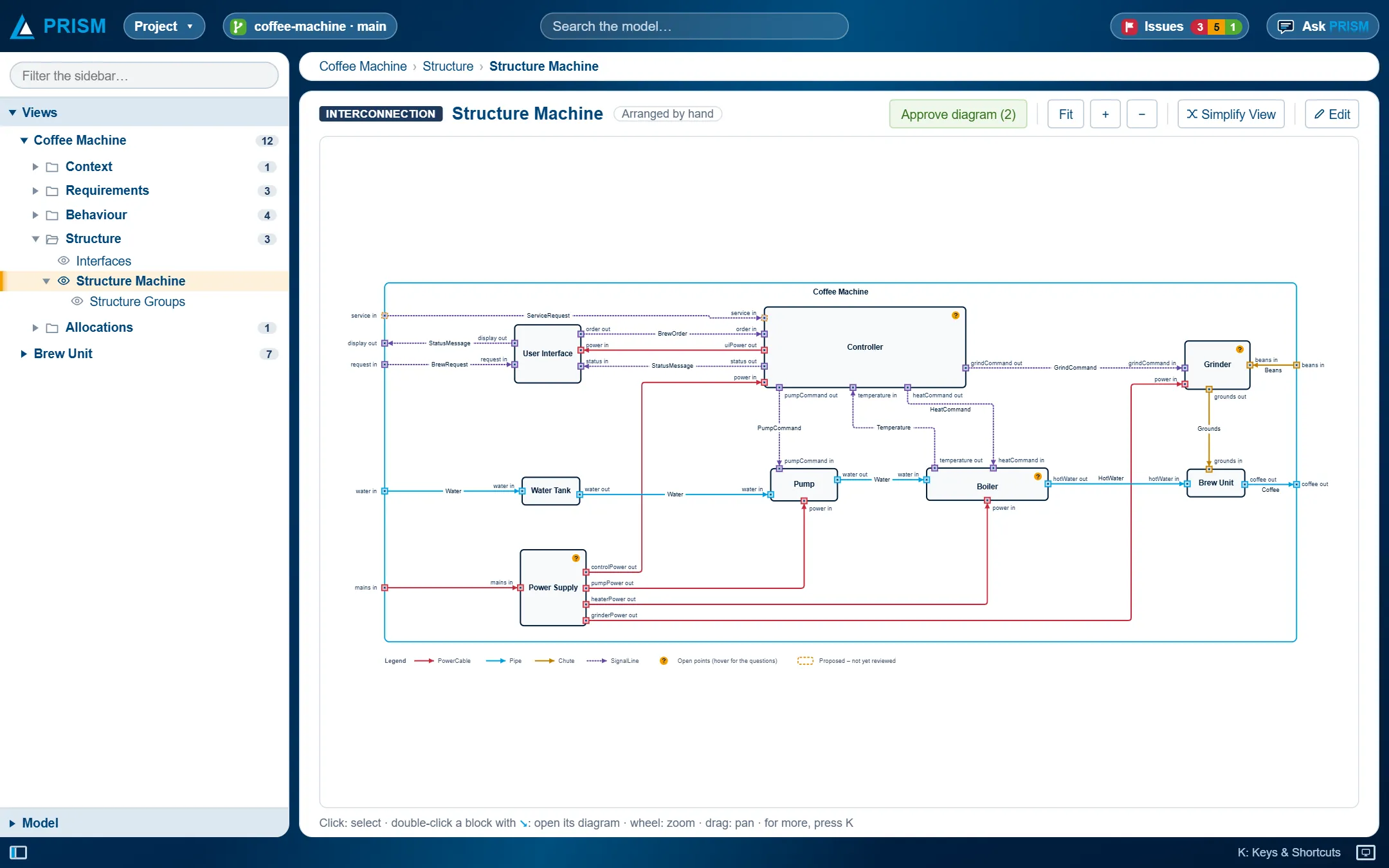
If you want a block somewhere else, move it in Edit mode. PRISM keeps your arrangement and marks the diagram Arranged by hand.
There are several kinds of views: context, structure, function flows with swimlanes, allocations, requirement traces and tables. Kinds of views explains each one.
Views for each stakeholder
Different people need different parts of the model. A project can list its stakeholders, for example a product manager or a hardware engineer, and the views each one uses. On the home page, Filter then highlights the views of one stakeholder and greys out the rest. The coffee machine tour shows this with three example stakeholders.
The app in your browser
PRISM runs on your computer, and you work with it in a browser window. Its pages are:
- the home page with the views of the project as cards (The home page),
- one page per diagram or table (Navigate diagrams),
- the requirement view with each requirement and its trace (Requirements),
- the Issues page with rule checks, AI proposals and open points (Issues).
Edit on a diagram switches to Edit mode, where you add, connect, rename and delete elements without writing text. Every change can be undone.
An AI assistant under your control
Ask PRISM at the top right opens a chat about the open model. It can explain a diagram, find the requirements an element satisfies, or propose a change. The chat needs an AI provider; without one, the diagrams and Edit mode work as usual.
You keep control of the model:
- Confirmation first. By default the assistant proposes each change on a card, and PRISM writes it to the model only when you click Confirm and apply.
- Marked as proposed. What the assistant adds is marked proposed: it is drawn with a dashed amber outline and a PROPOSED tag until someone approves it.
- Undo. Every change the assistant writes can be undone, like your own edits, and nothing is committed until you commit it.
More in Ask PRISM and Proposed content.
What a project is
A project is one folder: the model files, a settings file prism.config.json and, usually, the Git repository around them. PRISM opens one project at a time and recognises a project folder by its prism.config.json. The Project menu at the top left opens another project or creates a new one. Project files lists what is in the folder.
What to read next
- Getting started with PRISM: open your first project and your first diagram.
- Coffee machine tour: a walk through the example that comes with PRISM.
- The home page and Navigate diagrams: find your way around.
- Edit mode: change the model.