Reading the model
Navigating diagrams
Select elements, read their details and text, open the diagram below a block, zoom, and move between views with the mouse or the keyboard.
A diagram in PRISM is more than a picture: every block and line is an element of the model that you can select, look up and follow. This page shows how to find your way through the diagrams of a project. The examples use the view Structure Machine of the coffee machine.
Select a block or a line
Click a block in the diagram. PRISM highlights it in orange, together with its lines and the blocks at their other ends, so you see at once what it is connected to. Click a line to highlight the line and its two ends. Click empty space to clear the selection.
The hint line under the diagram always says what the mouse does on this page.
Read the details of an element
Select an element and press Enter. The details panel opens on the right.
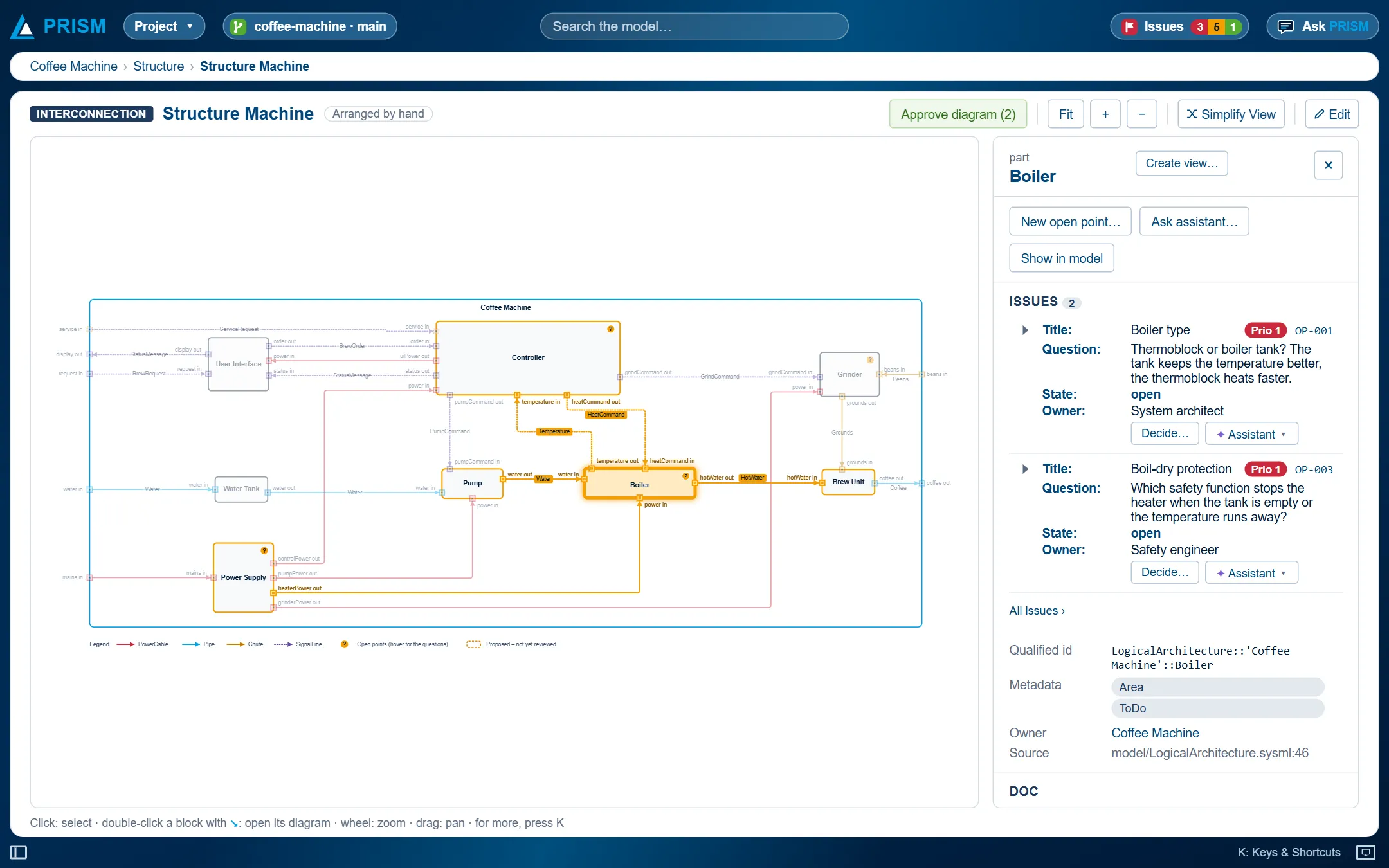
The panel shows, from top to bottom:
- the kind and name of the element, for example part Boiler, with buttons such as Show in model;
- the open points and other issues about it, under Issues;
- its qualified id, metadata, owner and the file and line it is written in;
- its description, under Doc;
- its relationships in both directions, for example Allocated from F1.1 Heat Water or Flows to Brew Unit, and the other views that show it. Each entry is a link.
A block with open points carries an amber ? in its top right corner. Click the ? to select the block and open the panel at its issues.
The panel follows the selection and stays open when you go to another diagram. Press Enter again or click × to close it.
Open the diagram below a block
A block with a small arrow in a circle (↘) in its top right corner has a diagram of its own. Double-click the block to open it. In the view Context Machine, double-click the block Coffee Machine to open Structure Machine, which shows what is inside the machine.
To go back up, double-click empty space in the diagram, press Esc, or click an entry of the breadcrumb.
Zoom, pan and fit
- Turn the mouse wheel to zoom, or use the + and − buttons above the diagram (keys + and −).
- Drag the diagram to move it.
- Click Fit, or press Space or F, to fit the whole diagram into the window again.
Find an element in the model browser
Press S to show or hide the sidebar. Under Model at its bottom it holds the model tree.
- Type in the filter box at the top to narrow the tree and the list of views.
- Click an element in the tree to select it; the arrow keys move the selection and Enter opens or closes the details panel.
- Double-click an element to open its own diagram, if it has one.
- Show in model in the details panel opens the tree at the selected element.
Read the text of an element
Select an element and press T. The text panel opens below the diagram with the element’s SysML v2 text: its declaration is highlighted, with line numbers, and the head names the file and lines.

- Copy copies the declaration.
- Whole file shows the whole file instead of the lines around the declaration.
- Drag the top edge of the panel to make it taller.
The panel follows the selection. Press T again or click × to close it. To change the text, see Edit mode.
Move between views with the breadcrumb
The breadcrumb above the diagram shows where you are, for example Coffee Machine › Structure › Structure Machine. Every entry except the current page is a link. A card entry such as Structure opens the home page with that card open. Press B to hide or show the breadcrumb bar.
Esc goes one level up, Backspace goes back to the previous page, and H opens the home page.
Simplify a busy structure diagram
When a structure diagram has several lines between the same two blocks, the toolbar shows Simplify View. Click it to fold each such bundle into one line with a count badge; hover the badge to see the folded lines. Double-click a folded line to unfold it, and click Simplify View again to unfold all of them.
Simplify View only changes what you see: nothing is written to the model, and PRISM keeps your choice when you reload the page.
Search the whole model
Type in Search the model… in the header. The list below the field shows matching elements, views, open points and issues while you type. Click a hit, or press Enter to open the first one.
Switch between light and dark
The button at the right end of the footer switches the colour theme. Each click moves on: System (follows your computer), Light, Dark. The diagrams switch with it, and your browser remembers the choice.
See all keys of a page
Press K on any page. The dialog Keys & Shortcuts lists the keys and mouse actions that work on the page you are on. Press K or Esc to close it. All keys in one table: Keyboard shortcuts.