Changing the model
Modules
Add a methodology module such as UAF or NAF to a project, update or remove it, and see what it brings to the model, the rule checks and the home page.
A module is a methodology package you add to a project. It brings the vocabulary of the methodology, the rules a model of that methodology has to follow, view definitions, and views for the home page. You need one when your project follows a methodology that PRISM does not know by itself. PRISM comes with two: UAF and NAF.
Add a module
- Click Project at the top left of any page and choose Modules….
- The dialog Modules lists Installed modules and Available ones. Each module shows its name, its version, where it comes from (bundled for the modules delivered with PRISM) and a short description.
- Click Add at the module you want.
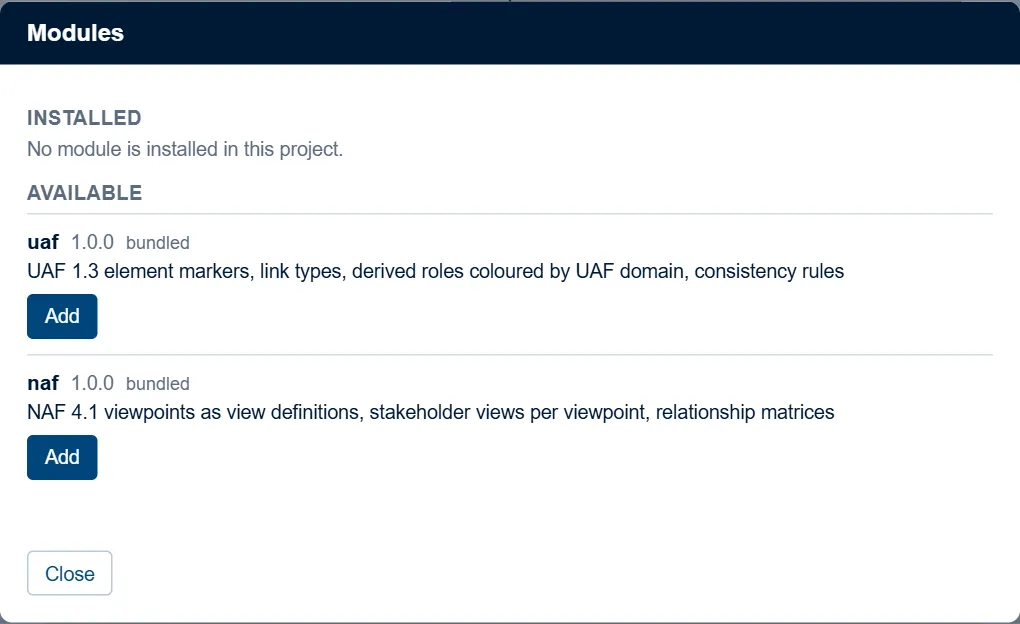
The module moves to Installed, marked installed, and a line below the lists says what happened, for example Added naf 1.0.0 (and uaf 1.0.0). PRISM reads the project again and builds the pages new; the page reloads when you click Close.
Nothing is committed. The added files show in the Git Status light of the page header; commit them like any other change (see Save and share).
If the buttons of the dialog are off, the dialog says why above the lists.
Update a module
A module whose newer version is available shows the mark update available with the new version, and an Update button. Click it to replace the module with the new version.
If someone changed the files of the module in the project, the module shows changed locally. Update then asks first and names the changed files: Overwrite and update replaces them, and the changes are lost; Cancel leaves everything as it is.
Remove a module
- Open Project > Modules….
- Click Remove at the module.
- PRISM asks to confirm and says which folder is deleted, for example Remove uaf? Its folder modules/uaf with all its 3 files is deleted and it is taken out of the profile. Click Remove module, or Cancel.
The module moves back to Available. As when you add one, nothing is committed.
A module that another installed module needs cannot be removed first. Removing UAF while NAF is installed answers module ‘uaf’ is required by ‘naf’; remove those first; remove NAF, then UAF.
UAF module
The UAF module brings the UAF 1.3 vocabulary: markers for the elements of the framework, such as capabilities, operational performers, operational activities, services, systems, functions and standards. The elements get a role and are coloured by their UAF domain wherever a diagram draws them. It also brings the link types for operational and resource exchanges, and the relationships between the elements, such as MapsToCapability or Implements.
The UAF module is a subset of the UAF 1.3 domain metamodel (strategic, operational, services, resources, standards). It is not a full implementation of UAFML.
UAF rules in the rule checks
The module also brings the consistency rules of UAF. PRISM checks them every time the model changes, like its other rules:
- A relationship must run the right way, for example MapsToCapability from an operational activity or a service to a capability, and Implements from a function to an operational activity. A wrong one is an Error.
- A model must be complete: a capability needs something that contributes to it, an operational activity needs a performer it is allocated to, and a function needs an operational activity it implements. A gap is a Warning.
The findings appear on the Issues page in the column Rule Checks, under the rule Violations of the model rules. Each finding has its own weight, Error or Warning, and the name of the model rule that found it after the colon, for example Violations of the model rules: implements. The line Finding names the element and says what is wrong.
NAF module
The NAF module brings the NATO Architecture Framework 4.1 to the project. It needs the UAF module, because NAF views show UAF elements. Add on naf therefore adds both: the confirmation line says Added naf 1.0.0 (and uaf 1.0.0).
The module brings:
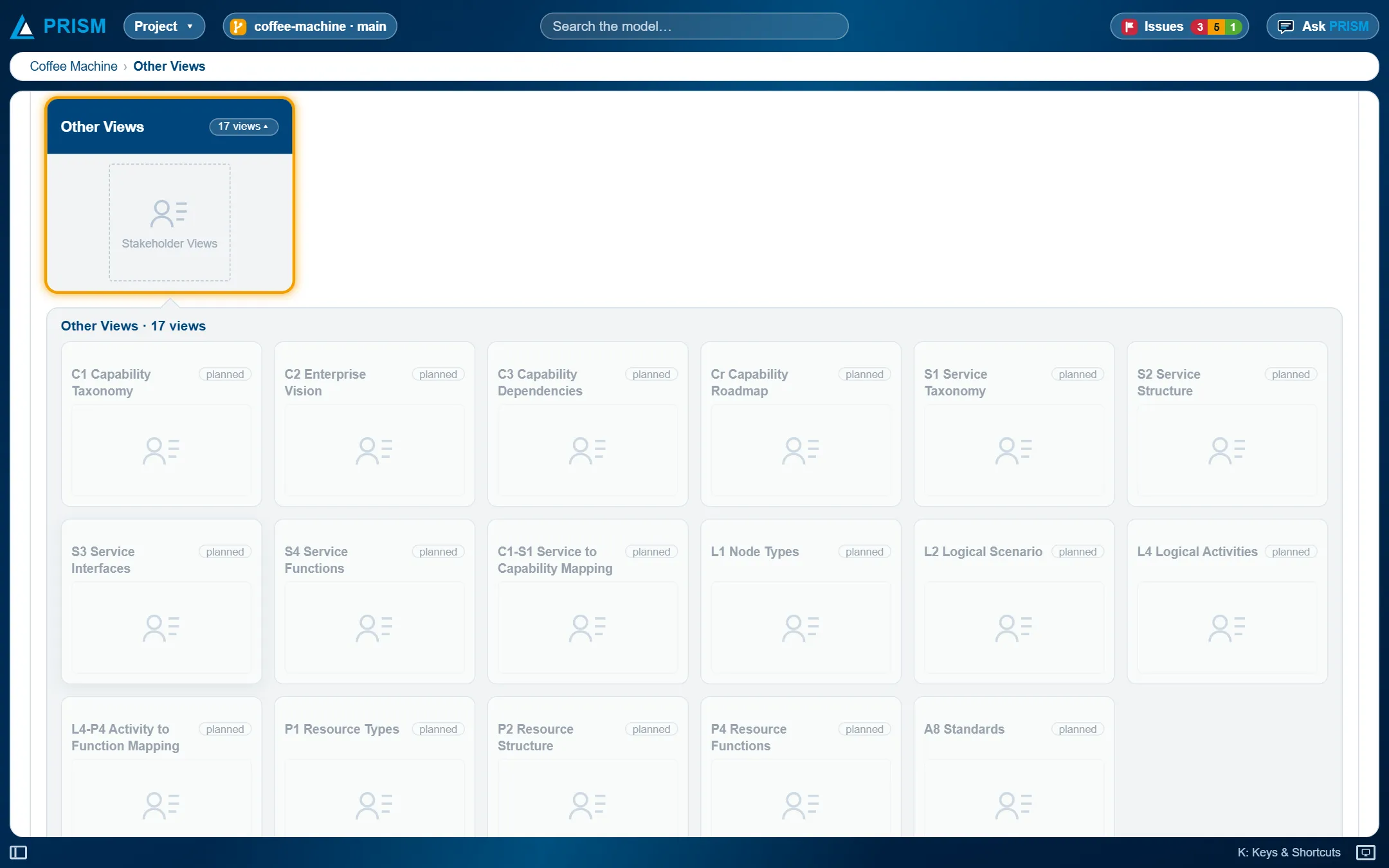
- one view definition for each NAF 4.1 viewpoint: C1, C2, C3, Cr, S1, S2, S3, S4, C1-S1, L1, L2, L4, L4-P4, P1, P2, P4 and A8, each drawn the way the viewpoint asks, with matrices for the viewpoints that map one kind of element to another;
- one stakeholder view for each viewpoint on the home page;
- the NAF order for the views, by viewpoint.
Right after you add it, the model has no view of any viewpoint yet. The home page then shows the card Other Views with all viewpoints, each marked planned. A viewpoint stops being planned once the model has a view of that viewpoint.
The NAF module is aligned with the names of NAF 4.1. It is not an official NATO artefact. The matrices show direct relationships only, and the taxonomies group the boxes by package and draw no specialization lines.