Changing the model
Project settings
Change the name, the diagram defaults and the model rules of a project in the browser, and see which settings are kept in the file only.
The project settings say how PRISM draws the diagrams of a project and which rules it checks in the model. You change them in a panel, without editing a file. Every setting says what it changes and what its default is.
Open the project settings
Click Project at the top left of any page and choose Project settings…. The panel Project settings opens with three groups: Project, Diagrams and Model rules.
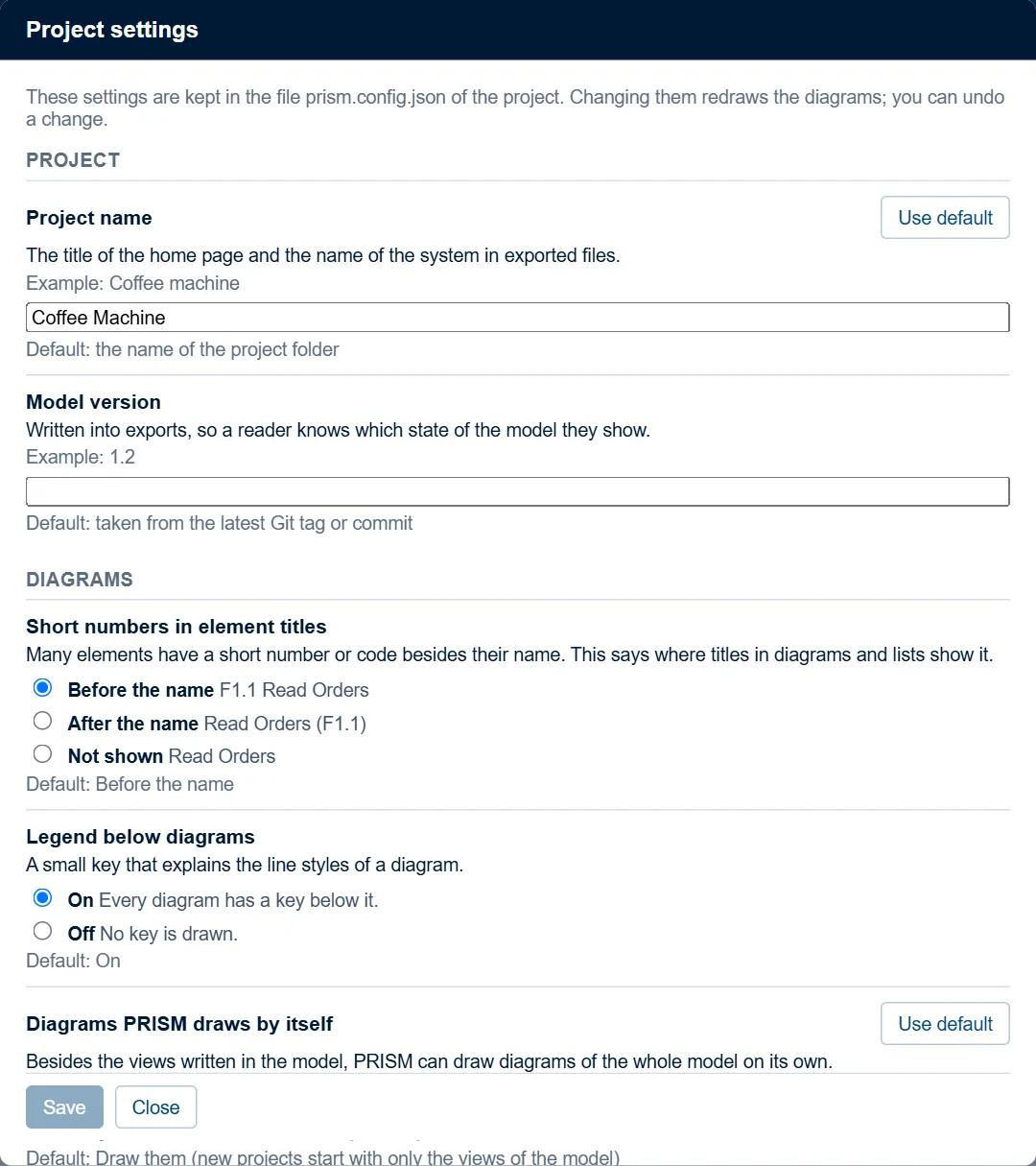
Under each setting you see an example where it helps, each choice with its effect, and the default.
Project
- Project name: the title of the home page and the name of the system in exported files. Empty: the name of the project folder.
- Model version: written into exports, so a reader knows which state of the model they show. Empty: taken from the latest Git tag or commit.
Diagrams
- Short numbers in element titles: where titles show a short number such as F1.1: Before the name, After the name or Not shown.
- Legend below diagrams: On draws a key of the line styles below every diagram.
- Diagrams PRISM draws by itself: Draw them also lists diagrams PRISM draws for every function, part and requirement group; Only the views of the model lists only the views you created. The coffee machine uses the second.
- Order of boxes below each other: By name (F1, F2, F10), As written in the model, or Fewest crossing lines.
- Same width for boxes below each other: On gives the boxes of one column the width of the widest one.
- Side of connection points: where ports sit on a box: Automatic, By direction (inputs left, outputs right) or Towards the connected box.
- Gap between lines running side by side: the smallest distance between two parallel lines, from 2 to 40 pixels.
Model rules
- Language of the model text: the language names and descriptions are written in, for example en or de. PRISM reports text that looks like another language; enter off to stop checking.
- Recognise functions without a mark: On counts an action directly inside a top-level action as a function.
- Requirements inside an excluded requirement: On excludes or defers the nested requirements together with a requirement marked not applicable or deferred.
- Marker for open points: On shows an amber question mark on a box with an open point.
- Highlight proposed content: On draws content nobody has reviewed yet with a dashed amber outline and a PROPOSED tag (see Proposed content).
- Mark AI changes as proposed: On marks what the AI assistant creates as proposed until someone approves it.
A setting that can make a check less strict says so in the panel.
Save a change
- Change one or more fields. A value that is not valid shows what to enter instead, and Save stays off until every field is valid.
- Click Save. PRISM writes all changed values in one step, and the diagrams use them at once.
- Click Undo this change if you want the old values back. The Undo of the Edit mode works too.
Use default next to a setting takes your value out again, so the default applies. A setting that another settings file of the project decides shows “Set by …” and cannot be changed here.
The change is a change of the project like any other: commit it with the Git Status. A change that makes a check less strict is committed on its own, after the model files; the commit dialog guides you through that.
More settings
At the bottom of the panel, More settings (change them in the file) lists every other setting of the project, read-only: its label, what it does, and a mark when the project sets it. Some of them can be changed in another place of PRISM, and the list says where, for example the card a view sits in, with Move to … in the right-click menu of a tile on the home page.