Reference
Keyboard shortcuts
Every key PRISM reacts to, page by page, including the keys of Edit mode, the chat and the trees.
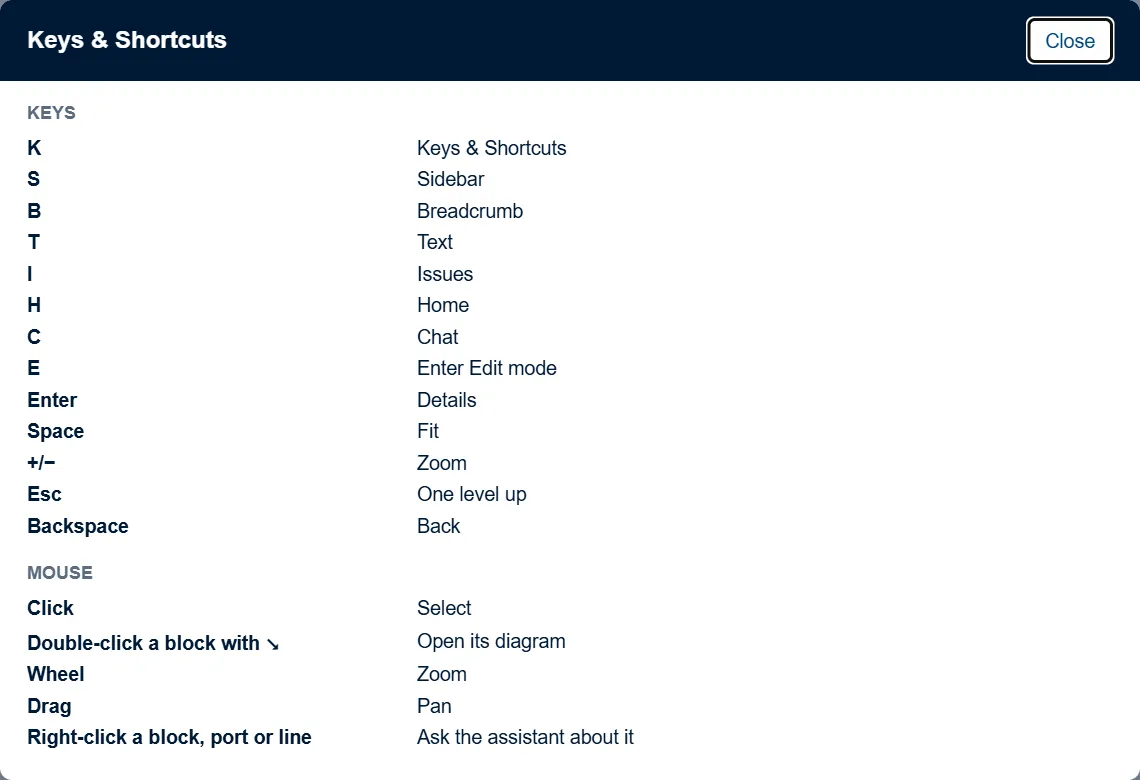
Most of PRISM can be used with single keys, without holding Ctrl. Press K on any page, or choose Keyboard shortcuts in the ? menu, to see the keys of exactly that page; this page lists them all in one place.
The single keys work whenever you are not typing: while the cursor is in a text field (the search, the chat, a form), the keys type letters as usual. On a Mac, use ⌘ wherever this page says Ctrl.
Keys on every page
These keys work on the home page, on diagrams, tables, the requirement view and the Issues page. A key is left out of the K dialog on pages where it has nothing to do, for example T on the home page.
| Key | Effect |
|---|---|
| K | Open or close Keys & Shortcuts, the list of keys of this page |
| S | Show or hide the sidebar with the views and the model tree |
| B | Show or hide the breadcrumb bar |
| T | Show or hide the text panel with the model text |
| I | Go to the Issues page |
| H | Go to the home page |
| C | Open or close the Ask PRISM chat |
| Esc | Close the open dialog; without a dialog, go one level up (to the parent in the breadcrumb) |
Home page
| Key | Effect |
|---|---|
| Esc | Close the card you opened last |
| Shift+F10 or the context-menu key | Open the menu of the focused view tile (Open, Open in new tab, Delete… and more) |
| Arrow keys, Enter, Esc | Move through that menu, choose an entry, close it |
The rest of the home page works with Tab and Enter like any web page. See The home page.
Diagram pages
| Key | Effect |
|---|---|
| Enter | Show or hide the details of the selected element |
| Space (also F or 0) | Fit the diagram to the window |
| + / − | Zoom in / out |
| Esc | One level up |
| Backspace | Back to the previous page |
| E | Enter Edit mode |
With the mouse: click to select, double-click a block with ↘ to open its diagram, the wheel zooms, drag to pan, and right-click a block, port or line to ask the assistant about it. See Navigate diagrams.
Tables
On a table page such as Interfaces:
| Key | Effect |
|---|---|
| Enter | Show or hide the details of the selected row |
| Esc | One level up |
| Backspace | Back to the previous page |
| E | Enter Edit mode |
Click an element or a relationship in the table to see its details.
Requirement view and Issues page
These pages have the keys of every page (above) and no keys of their own besides Esc (one level up). In the requirement tree of the requirement view:
| Key | Effect |
|---|---|
| ↑ / ↓ | Previous / next entry |
| → / ← | Open / close a package, or go to its first entry / to the package above |
| Home / End | First / last entry |
| Enter or Space | Show the requirement, or open and close a package |
See Requirements and Issues.
Model tree in the sidebar
With the focus in the model tree (Model in the sidebar):
| Key | Effect |
|---|---|
| ↑ / ↓ | Previous / next element |
| → / ← | Open / close an entry, or go to its first child / to its parent |
| Home / End | First / last element |
| Enter | Select the element and show its details |
| Ctrl+Enter or Shift+Enter | Open the element’s own diagram |
Edit mode on a diagram
Press E or click Edit on a diagram. See Edit mode.
| Key | Effect |
|---|---|
| E | Leave Edit mode |
| Esc | Cancel the current tool, then clear the selection, then leave Edit mode |
| Arrow keys | Nudge the selected blocks (Shift: bigger steps) |
| Delete or Backspace | Delete the selection (a dialog lists everything the delete takes with it) |
| Ctrl+C / Ctrl+V | Copy the selected blocks / paste them where the pointer is |
| Shift+Ctrl+V | Paste with the connections between the copied blocks |
| Ctrl+A | Select all blocks of the frame |
| Ctrl+Z | Undo |
| Ctrl+Shift+Z or Ctrl+Y | Redo |
With the mouse: drag a block to move it (onto another block: move it inside), Shift- or Ctrl-click or Shift-drag on empty space to select several, drag from port to port to connect, click a line and drag a segment to reroute it, + beside a selected block to add an input or output, and right-click for everything else.
Edit mode on a table
| Key | Effect |
|---|---|
| E | Leave Edit mode |
| Enter / Esc in a field | Save / cancel the value |
| Esc | Leave Edit mode |
Click a value with a thin outline to edit it.
Chat
In the input of Ask PRISM:
| Key | Effect |
|---|---|
| Enter | Send the question |
| Shift+Enter | New line |
| Esc | Leave the input, so the page keys work again |
See Ask PRISM.