Getting started
Coffee machine tour
A guided walk through the coffee machine example that comes with PRISM, view by view, with its subsystem level, open points, proposed content and stakeholders.
The coffee machine example is a small but complete PRISM project. It shows every kind of view on one invented machine, so it is the quickest way to learn what PRISM can do. Everything in it, names, numbers and people, is made up. To open it, choose Try the coffee machine example on the welcome page or Open the coffee machine example in the ? menu: PRISM opens a fresh copy, so nothing you try can break it. See Getting started with PRISM. Without installing anything, you can look at it in the online demo.
What the model describes
The machine makes one cup at a time from water, beans and mains power. The model has:
- a context: the user, a water source, the bean supply, the mains outlet and a service technician (proposed, see below);
- functions on two levels: the system functions F1 Prepare Coffee, F2 Descale Coffee Machine and F3 Clean Coffee Machine, each split into partial functions such as F1.1 Heat Water or F2.1 Remind to Descale;
- eight logical elements: Power Supply, Water Tank, Pump, Boiler, Grinder, Brew Unit, Controller and User Interface. Every partial function satisfies a requirement and is allocated to one of them;
- requirements: customer requirements and the system requirements derived from them;
- a subsystem, the Brew Unit, with a level of its own.
Which view shows what
The home page groups the views of the system level into five cards. Click a card to see its views, or pick a view in the sidebar.
| Card | View | What it shows |
|---|---|---|
| Context | Context Machine | the machine as one block with its ports, and the actors around it |
| Requirements | Requirements Landscape | customer requirements, system requirements and the functions that satisfy them, with the number of links |
| Requirements | Requirements Traceability | the requirement view: every requirement with its text and its trace |
| Requirements | Trace System Requirements | each system requirement, the function that satisfies it and the part it is allocated to |
| Behaviour | System Functions | F1 to F3 as black boxes, each with the items it takes from and gives to the outside |
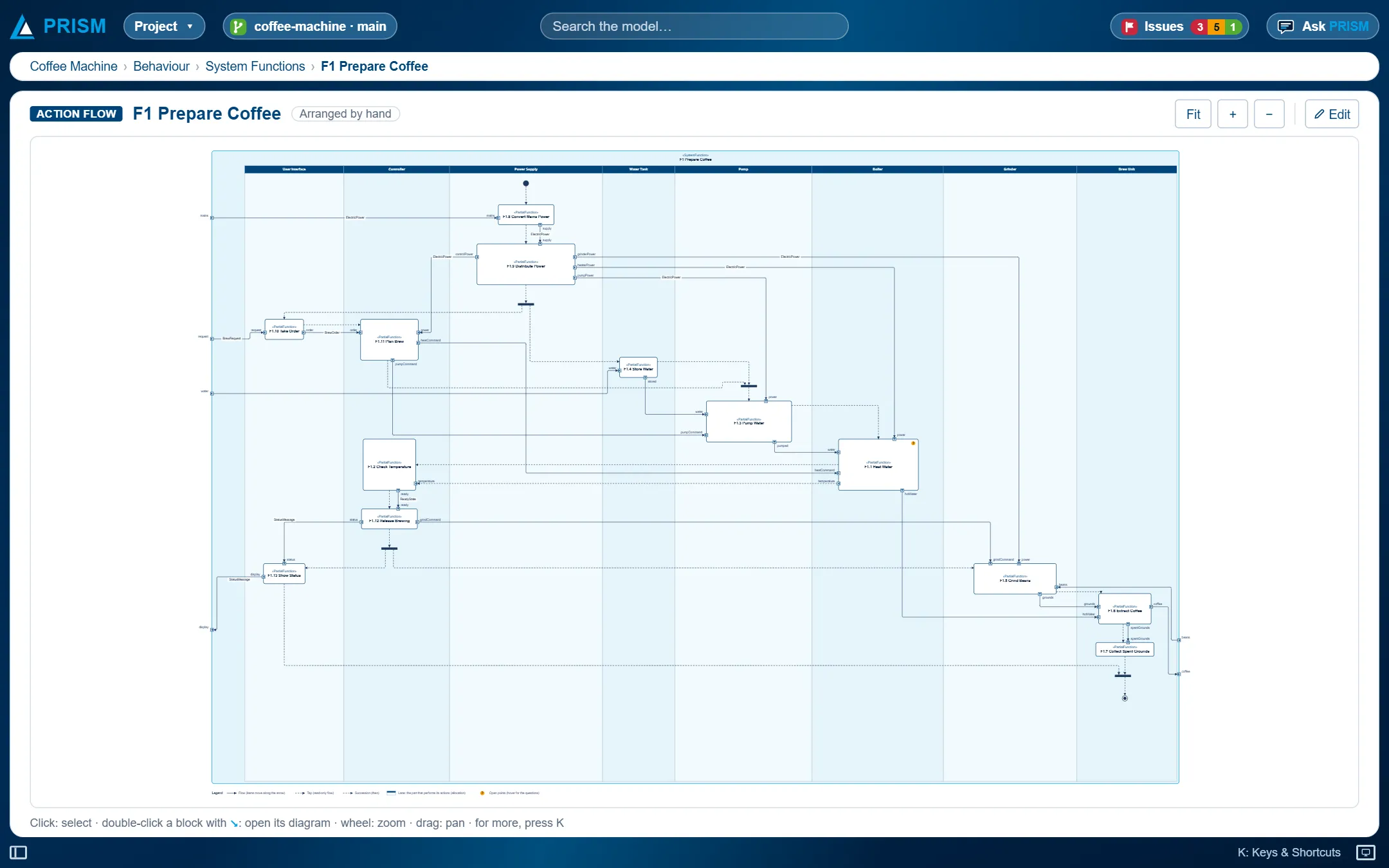
| Behaviour | F1 Prepare Coffee, F2 Descale Coffee Machine, F3 Clean Coffee Machine | the partial functions of one system function in the order they happen, one swimlane per logical element |
| Structure | Interfaces | a table of the items, port types and connection types, with where each is used |
| Structure | Structure Machine | the eight logical elements with their ports and connections |
| Structure | Structure Groups | the same elements grouped into areas: water circuit, electronics, brewing |
| Allocations | Allocation Machine | which logical element performs which function |
F1 Prepare Coffee, F2 Descale Coffee Machine and F3 Clean Coffee Machine are the swimlane diagrams, one per system function. Double-click a system function in System Functions to open its swimlane diagram. Read F1 Prepare Coffee from the start dot at the top: the power supply converts mains power, the water tank and pump deliver water, the boiler heats it, and F1.2 Check Temperature reports to F1.12 Release Brewing, which starts the grinder only when the water is hot.
In Structure Machine the lines are drawn in the style of their link type: pipes blue, chutes amber, power cables red, signal lines violet and dotted. The legend below the diagram names them. How to move around a diagram is in Navigate diagrams; each kind of view is explained in Kinds of views.
The Brew Unit level
The Brew Unit is a subsystem with its own level. To open it, click the Brew Unit block in the System Overview at the top of the home page, or pick one of its views under Brew Unit in the sidebar.
The Brew Unit level has the same five cards with views of its own:
- Context Brew Unit: the unit between boiler, grinder and user.
- Structure Brew Unit: its parts Brew Chamber, Press, Spout and Grounds Bin and their connections, plus its own Interfaces table.
- Behaviour Brew Unit: the extraction cycle in swimlanes, one lane per part, from start to done.
- Allocation Brew Unit: which part performs which step.
- Trace Brew Unit and Requirements Traceability: its requirements, derived from the system requirements.
Click Coffee Machine in the System Overview to go back to the system level.
Open points and proposed content
The example contains questions that are not decided yet and content that an AI assistant added and nobody has approved. Both are meant to show how PRISM handles unfinished work.
Open points are questions in the model, such as OP-001 Boiler type (“Thermoblock or boiler tank?”) or OP-006 Press drive on the Brew Unit level. A block with an open point shows an amber question mark in the diagrams. The example has six open points; one of them is already decided.
Proposed content is content an AI assistant added: the Service Technician, its service ports and the requirement SR-014 Descale reminder. In the diagrams it has a dashed amber outline and a PROPOSED tag, and the legend says “Proposed – not yet reviewed”. A diagram that draws proposed content shows Approve diagram in its toolbar.
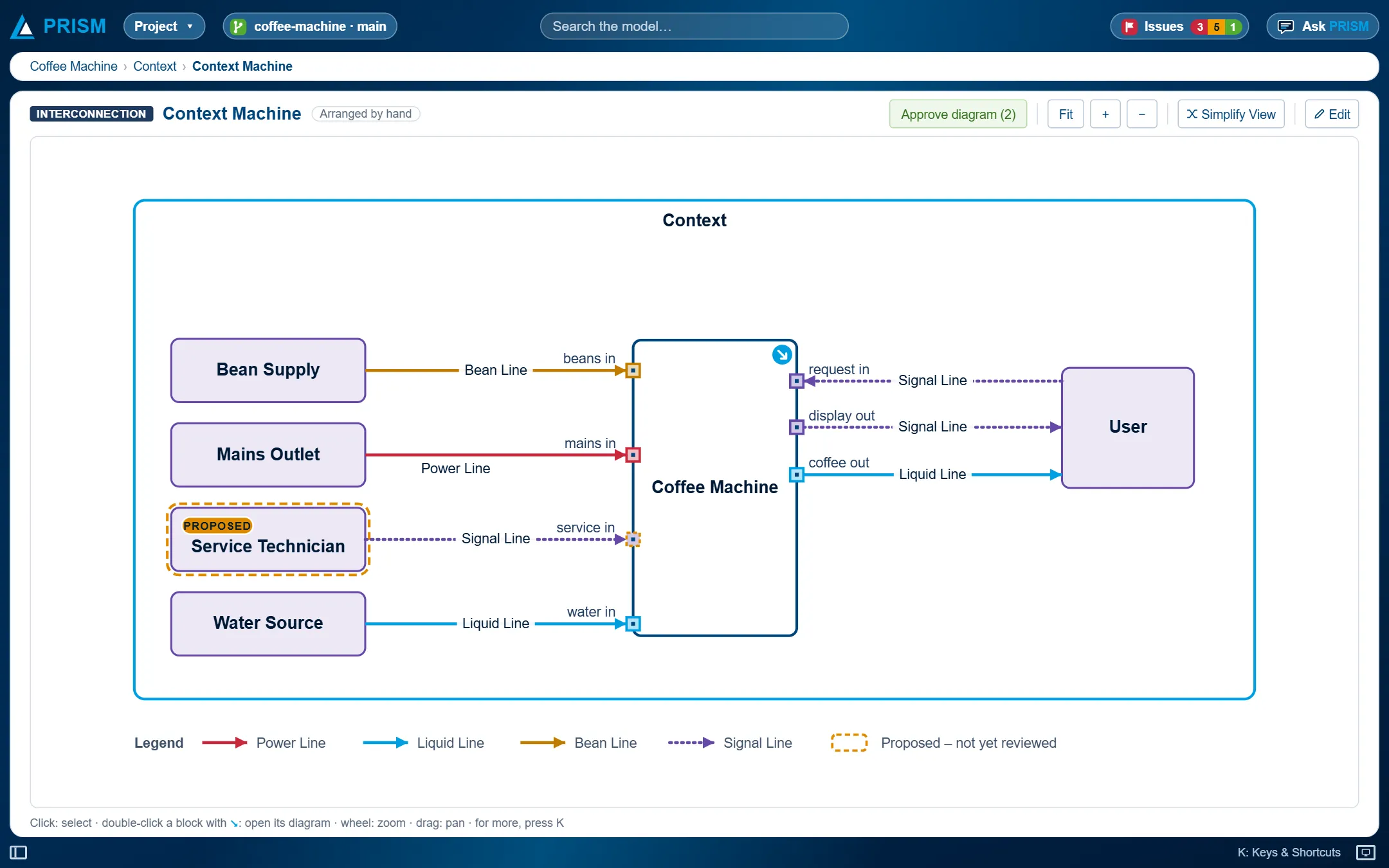
To see all of it in one place, click Issues at the top of any page and then Open the Issues page (or press I). The page lists the open points with their question and owner, the AI proposals with Approve and Reject…, and the rule checks. The rule checks report nothing in the example: every requirement is realized, SR-014 too. See Issues and Proposed content.
See the views of one stakeholder
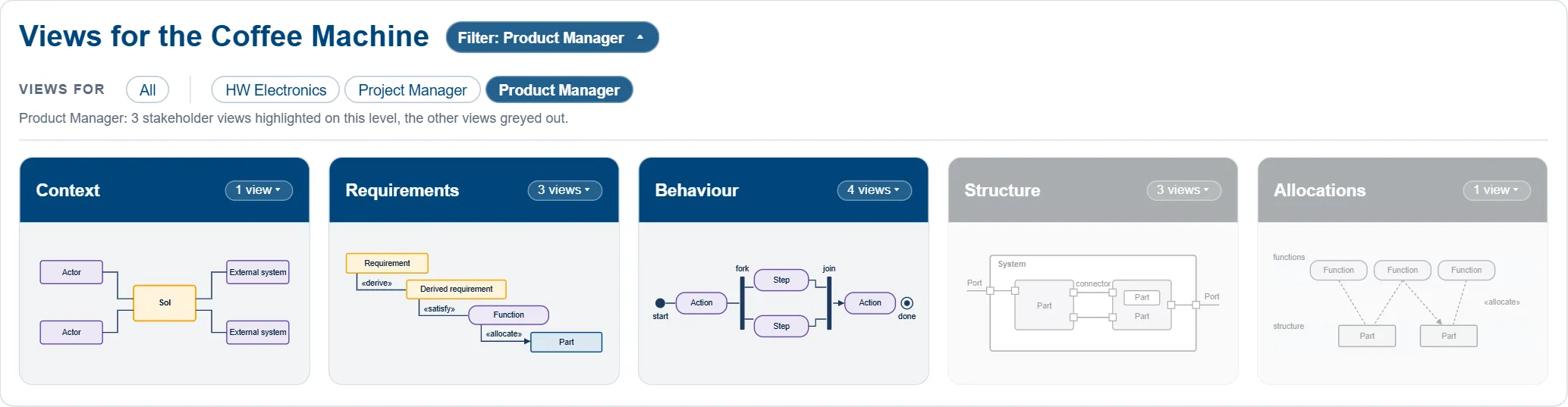
On the home page, Filter next to Views for the Coffee Machine opens the stakeholder selector. The example has three stakeholders:
- HW Electronics uses all views.
- Project Manager uses only Structure Groups.
- Product Manager uses Context, System Functions and the requirement views.
Click a name: the cards with the views that stakeholder uses stay highlighted, the others are greyed out, and a note says how many of their views are on this level. Greyed cards still open. All shows everything again.
Try things out
Click Edit on Structure Machine and move a block, or ask the chat about a diagram. Every change can be undone, and nothing is committed until you commit it. Next, read Edit mode or Ask PRISM.