Changing the model
Edit mode
Change the model straight from a diagram – move and resize blocks, add parts and ports, connect, rename, delete, hide, and undo every step.
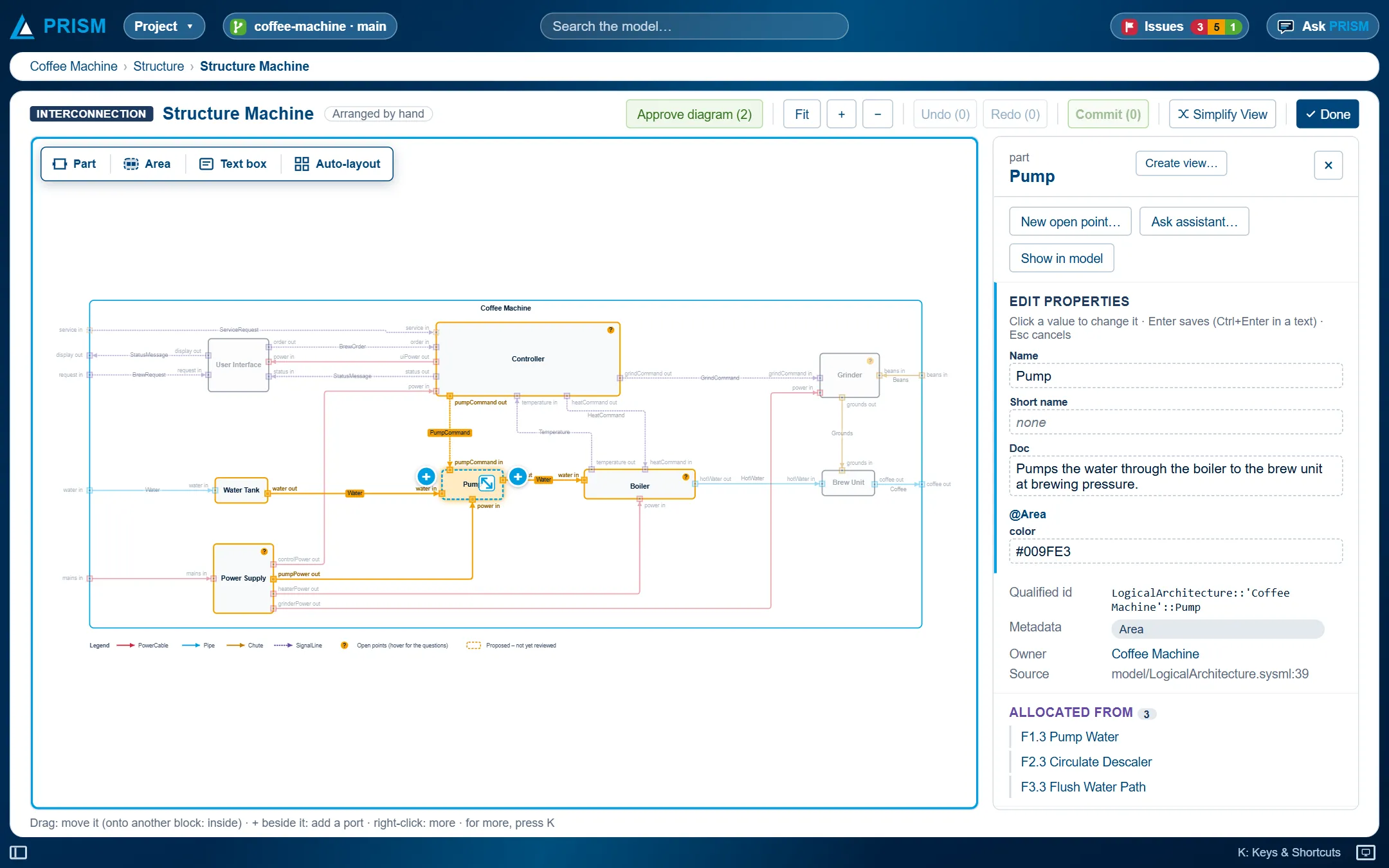
In the Edit mode you change the model with the mouse, right in the diagram: PRISM writes the SysML v2 text for you. Use it to arrange a diagram, to add and connect elements, and to fix names and texts. The examples use the view Structure Machine of the coffee machine.
Turn the Edit mode on and off
Open a diagram and click Edit at the top right of the diagram, or press E. The button turns into Done; click it or press Esc to leave the Edit mode.
In the Edit mode the diagram gets a toolstrip at its top left (in a structure diagram Part, Area, Text box and Auto-layout), the buttons Undo (n), Redo (n) and Commit (n), and more entries in the right-click menu. Press K for every key of the page.
Every change is checked before it is written: when it would give the model new errors, PRISM refuses it and says why. Nothing is committed by itself; see Save and share your changes.
Move and resize blocks
In the Edit mode, drag a block. It moves with its contents and ports, and its lines are drawn again when you drop it. To move several blocks, Shift-click them or Shift-drag a rectangle on empty space, then drag one of them.
To change the size of a block, select it and drag the handle at its bottom right corner. Reset size in its right-click menu gives it the automatic size again.
PRISM saves the arrangement in the project shortly after you drop. The diagram then shows Arranged by hand next to its title.
Add a part or a port
In the Edit mode of a structure diagram:
- A part: click Part in the toolstrip, then click where the part goes. Type its name and press Enter.
- A port: click the “+” beside a selected block, or right-click the block and choose Add input… or Add output…. The form New port on Pump asks for the Name, the Direction and the Type; click Add.
Connect two ports
In the Edit mode, drag from one port to another. When only one link type fits the two ports, PRISM draws the connection at once; in Structure Machine a line between two water ports becomes a pipe. Otherwise a small form asks for the Link type and what the connection Carries.
Rename an element
In the Edit mode, right-click the block or port and choose Rename…. While you type, the form lists every place in the model that refers to the element. Click Rename: PRISM renames the element and all those places together.
Delete an element
In the Edit mode, select the element and press Delete, or right-click it and choose Delete… (Delete port… on a port). PRISM asks what you mean:
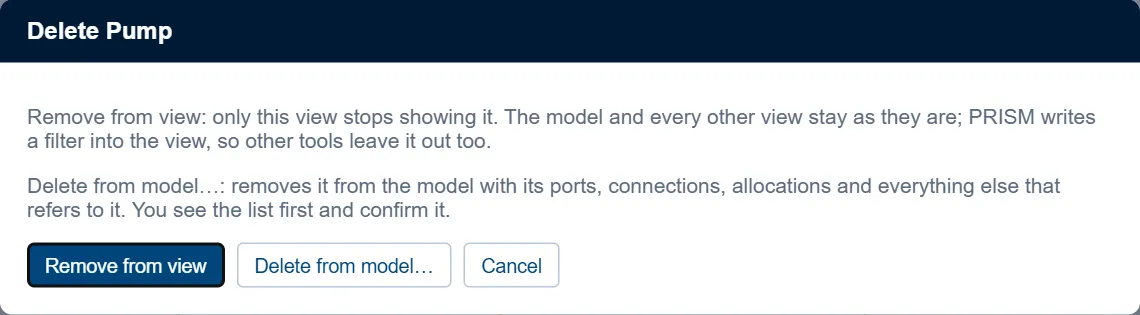
- Remove from view: only this diagram stops showing the element. The model and every other view stay as they are.
- Delete from model…: PRISM lists everything that goes with it and everything that changes, for the Pump its ports, flows and allocation. Nothing goes until you click Delete from model (n).
- Cancel: nothing changes.
Hide a block in one diagram
In the Edit mode, right-click a block and choose Hide this block. The diagram is drawn without it; the model does not change, so do not rely on hiding to keep something out of a file you hand on. To bring it back, click Show hidden (n) in the toolstrip, right-click the block and choose Show this block.
Add a text box
In the Edit mode, click Text box, click where the box goes and type the text; Ctrl+Enter (Cmd+Enter on a Mac) keeps it, Esc cancels.
Give a diagram back to the automatic layout
In the Edit mode, click Auto-layout in the toolstrip. PRISM says how many positions and routes you placed by hand and removes them after you confirm; Compact instead… keeps your arrangement and only closes the gaps. Auto-layout this block… in the right-click menu resets one block. The model does not change.
Undo and redo
In the Edit mode, click Undo (n) or Redo (n), or press Ctrl+Z and Ctrl+Shift+Z (Cmd on a Mac). There is one history for all your changes, in the order you made them; it survives a reload of the page and a restart of PRISM. A commit ends it.
PRISM refuses an undo, and says why, when the file was changed elsewhere meanwhile or the undo would give the model new errors.
Edit properties in the details panel
In the Edit mode, select an element and press Enter to open the details panel. Its section Edit properties turns the name, the short name, the doc text (the requirement text of a requirement), attribute values and metadata values into fields. Click a value, type, and press Enter to save (Ctrl+Enter in a text of several lines); Esc cancels. Each save is one step of the undo history.