Ask PRISM
Your data and the AI chat
See which data the AI chat sends to which provider, which data it never sends, and where to read the full notice.
PRISM works without the AI chat. Once you set the chat up and use it, parts of your model leave your computer. This page tells you which, so you can decide whether the chat is right for a project. The full notice is in the app.
Read the notice in the app
The first time the chat is ready to use, a card above the conversation says Before you use the chat. It names what is sent and links the full notice.
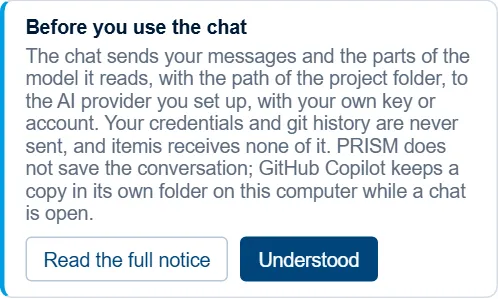
- Click Read the full notice to open the whole text in a new tab.
- Click Understood when you have read it. The card does not come back once PRISM has saved your confirmation. If PRISM cannot save it, the card appears again at the next start. Sending a message while the card is shown does the same. Closing the page or reading the notice does not.
- When you right-click an element and choose Ask assistant about this… while the card is shown, the card appears first and your question waits in the input. Read the card, then send the question or click Understood. A draft you had already typed stays: the question is put in front of it.
The card does not stop you from using the chat. PRISM remembers that you saw it for your user, not for one project; if the notice changes in a later version, the card appears again once.
The confirmation before an AI Review says that the elements of each area go to the AI provider you set up, and has a link AI chat and your data.
To read the notice later, click the ? button at the top right and choose AI chat and your data.
Who receives your data
The chat sends your messages and the model data it needs to the AI provider you chose when you set up the chat, with your own key or your own account. The data goes straight from your computer to that provider, or to your company’s gateway or proxy when you entered one or your computer is set up to use one. itemis does not receive it. A gateway also receives your key, because the key signs the request, and a proxy that inspects traffic sees the data as well.
What the provider keeps, for how long and whether it uses the data to train models depends on your agreement with that provider. Check it before you use the chat on a model that is not public.
What is sent
- Your messages and the earlier messages of the conversation.
- With every message, a line about what you look at: the name of the project, the title, kind and anchor of the diagram, and the id and name of the selected element and of the element you ask about.
- What the chat reads from the model to answer you: element ids, names, kinds, descriptions, comments, attributes, relations, requirements and their trace, open points, review proposals and their status texts, diagnostics, and the text of changes it proposes.
- The names of the model files and line numbers, and full paths on your computer: the project folder, the folder of the git repository, linked subsystem projects and the project profile file when it lies outside the project folder. Paths contain your user name and folder names.
- When the chat commits for you: the branch, the commit message and the short id of the commit.
- The project’s own settings that guide the chat: the modelling conventions file (also the one of an installed module), the model language and the project profile.
- During an AI Review, after you confirm it: the elements of each area with their ids, descriptions, comments, relations and trace, in bulk, up to 60 areas. File names, line numbers, paths, layout and the review files are not part of it.
What is never sent
- Your key or sign-in. They stay on your computer and go only to their own provider, or to the gateway you set. They are never part of a message.
- The history and the remote addresses of your git repository (the chat’s own commit is named above).
- Other files of the project folder (except the conventions file the project names), layout files, and other files outside the project folder.
- Images of diagrams that you save from the chat.
- Anything while the chat is not set up: PRISM sends no model data without the chat.
What stays on your computer
PRISM keeps the conversation in memory while it runs. It does not save it and does not send it to itemis. With one of the chat providers, its helper program keeps the conversation as a file in PRISM’s configuration folder while a chat is open. The file is deleted when you reset the chat or PRISM stops. After a crash it is deleted the next time PRISM starts that provider; if you removed the provider setup in the meantime, the file stays on your computer until you delete it yourself. The provider may keep the conversation as its own terms say.
If a project must not leave your computer
Do not set up the chat for it, and do not start an AI Review. Everything else in PRISM works without the chat. You can remove the chat setup at any time with Chat setup… in the settings menu of the chat (see Ask PRISM). A key that comes from your computer’s environment cannot be removed in PRISM; remove it there.