Reading the model
The home page
Find your way around the home page of a project, the header and the sidebar, and open the view you need.
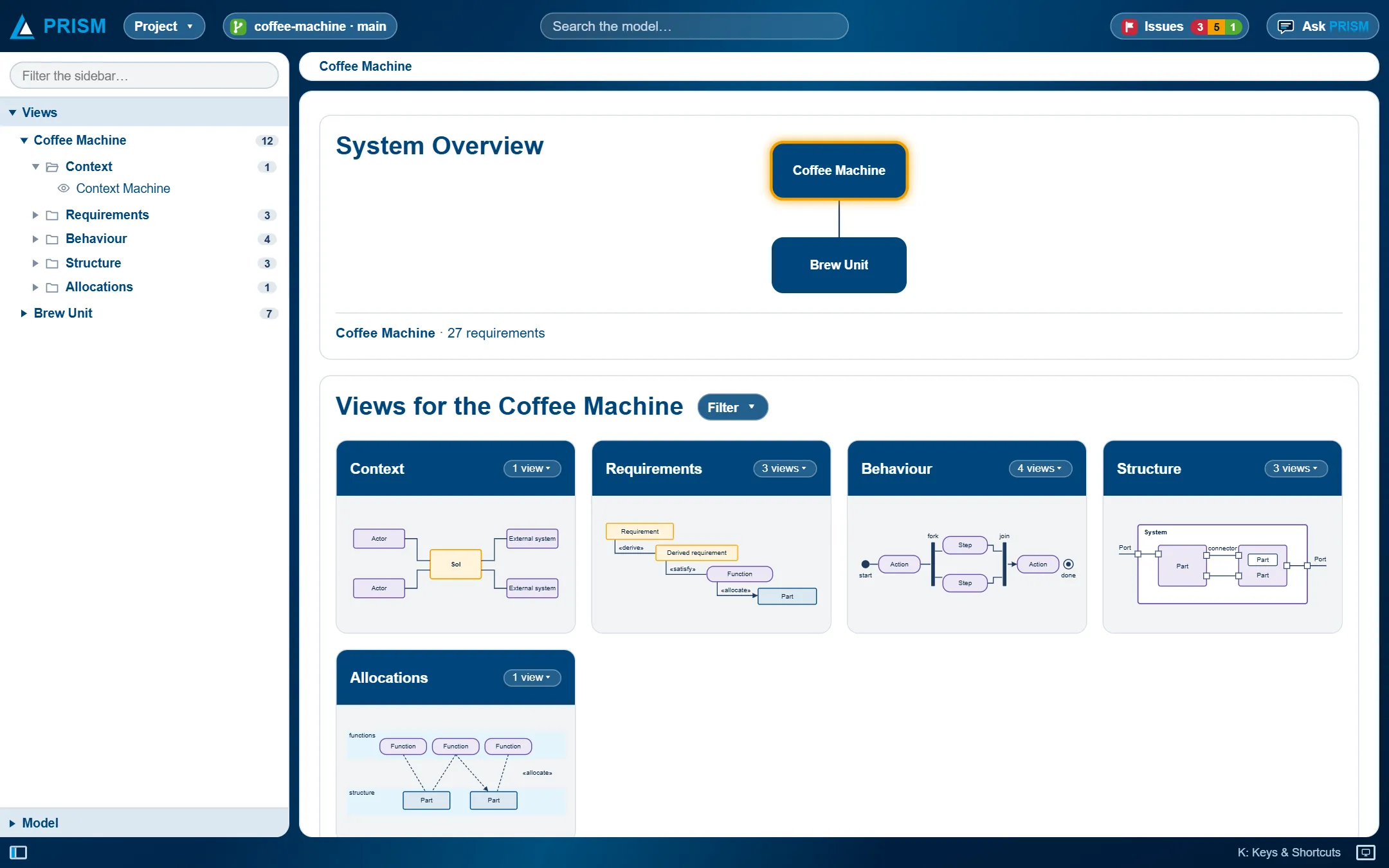
The home page is where every project starts. It shows how the system is divided into levels and lists every view of a level on cards. Click PRISM at the top left or press H to come back to it from any page.
A project without views shows a hint at the top: right-click a card to create the first view (see Create views), or open the coffee machine example to look at a finished project first.
Switch between levels in the System Overview
The System Overview at the top of the home page draws the levels of your system as a small tree. In the coffee machine example the top level is Coffee Machine and the Brew Unit is a subsystem with its own level.
- Click a level, for example Brew Unit, to show the views of that level below. The level you are on is outlined.
- The line under the tree names the level and its number of requirements (Coffee Machine · 27 requirements). Click the number to open the requirement view for that level.
Open a view from its card
Under Views for the Coffee Machine each kind of view has a card: Context, Requirements, Behaviour, Structure and Allocations. The pill in the head of a card says how many views it holds, for example 3 views.
- Click a card. It opens and shows its views as tiles; the card is outlined while it is open.
- Click a tile to open the diagram or table.
A tile that has views nested below it shows its own count, for example Structure Machine with 2 views: click it to see Structure Groups, which is drawn from it. Right-click a tile for Open and Open in new tab. A card that holds no view yet stays greyed out.
What each kind of view tells you is on Kinds of views.
Show only the views a stakeholder uses
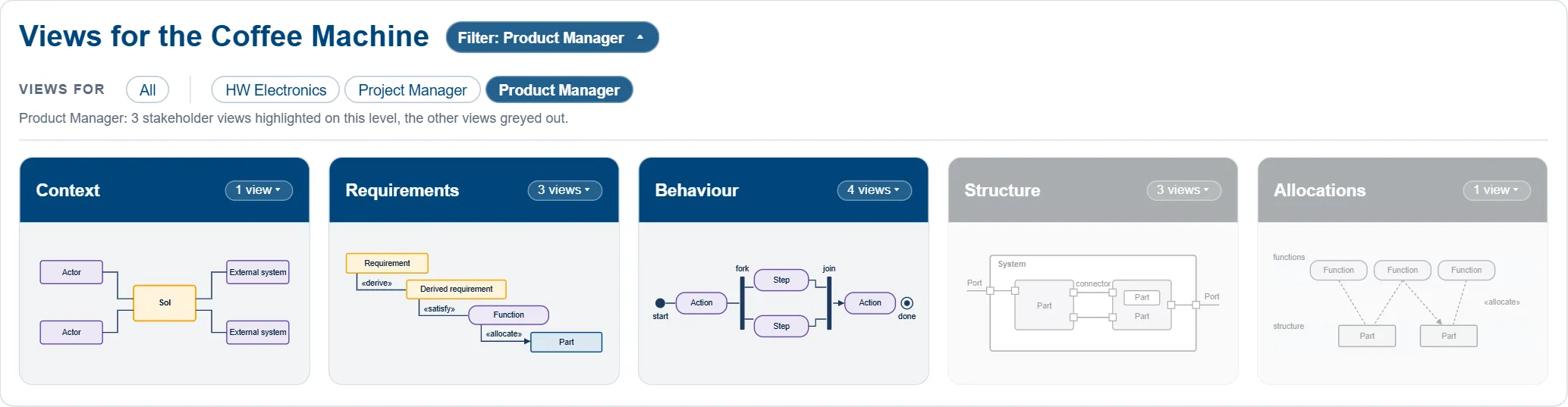
Click Filter next to the heading of the view cards. A row of buttons appears under Views for, one per stakeholder of the project. In the coffee machine example these are HW Electronics, Project Manager and Product Manager.
Pick a stakeholder: the cards with that stakeholder’s views stay as they are, the other cards are greyed out, and a line says how many views are highlighted on this level. The button now reads Filter: Product Manager. Click All to see everything again. PRISM remembers the choice in your browser.
Hide a tile from the home page
Right-click a tile and choose Delete…. In the question that opens, Remove from home page only takes the tile off its card. The view stays in the model and you can still open it from the sidebar, links and search. The message that confirms it offers Undo. How the change is saved and shared is on Save and share.
To bring a hidden view back, click Show hidden (n) at the foot of its card and choose Show again: followed by the name of the view.
The other button of that question deletes the view from the model; see Create and delete views.
Use the header
The header is the same on every page:
- Project opens the project menu: details and settings of this project, other projects, and more. See Project settings.
- The Git status pill shows the project folder and branch, for example coffee-machine · main. Click it to see what changed and to pull or push; see Save and share.
- Search the model… finds elements, views, open points and issues as you type. Press Enter to open the first hit, Esc to clear the field.
- Issues shows the counts of rule checks, AI proposals and open points in red, amber and green. See Issues.
- ? opens the help menu: the getting-started guide, the keyboard shortcuts of the page, the coffee machine example and what the AI chat does with your data, and, depending on your installation, what is new in your version, a problem report by e-mail, the contact form and the licence agreement. See Getting started with PRISM.
- Ask PRISM opens the chat (also C). See Ask PRISM.
Use the sidebar
The sidebar on the left lists the views under Views, grouped by level and by card, with their counts. Click a view to open it.
- Type in Filter the sidebar… to narrow the list.
- Model at the bottom of the sidebar opens the model tree: every package, part, function and requirement of the model. Drag the line above it to give it more room.
- Press S, or click the sidebar button at the left end of the footer, to hide or show the sidebar. Drag its edge to make it wider.
How to use the model tree together with a diagram is on Navigating diagrams.